
QUICK TUTORIAL
From project folder to first multicam edit.
A practical guide to preparing, processing and exporting a Hootio VideoBot project.
QUICK START
Five steps to a useful first pass.
STEP 1
Create a clean project folder
Place each camera and external audio source in its own subfolder inside one main project folder.
STEP 2
Create a new edit
Open Hootio VideoBot, create an edit and choose the main project folder.
STEP 3
Run PreProcess
VideoBot analyses clips, creates lightweight proxies, synchronises devices and prepares chapters.
STEP 4
Choose a ready chapter
Start Smart Edit as soon as a chapter is available; the remaining media can keep processing.
STEP 5
Export FCPXML
Import the timeline into Adobe Premiere Pro or DaVinci Resolve and complete the creative edit.
PROJECT PREPARATION
Give every device its own folder.
A consistent folder structure gives VideoBot a clear map of the shoot. Keep each camera and recorder separate under one project folder.
- WEDDING_NAME / CAMERA_A
- WEDDING_NAME / CAMERA_B
- WEDDING_NAME / DRONE
- WEDDING_NAME / EXTERNAL_AUDIO
DETAILED GUIDE
Open the step you need.
01Preparing the project folder+
Create one main folder for the wedding or event. Inside it, create a separate subfolder for every camera and external audio recorder. Copy the original media into the matching subfolder without mixing devices. VideoBot supports project folders on local drives, external drives, NAS and shared network folders.
02What happens during PreProcess?+
VideoBot reads audio and video, creates lightweight proxies where required, synchronises devices and groups the shoot into time-based chapters. A typical full wedding can take roughly 2–4 hours depending on footage length, codec, storage speed and computer hardware. You can begin with ready chapters before the full project finishes.
03Using Smart Edit+
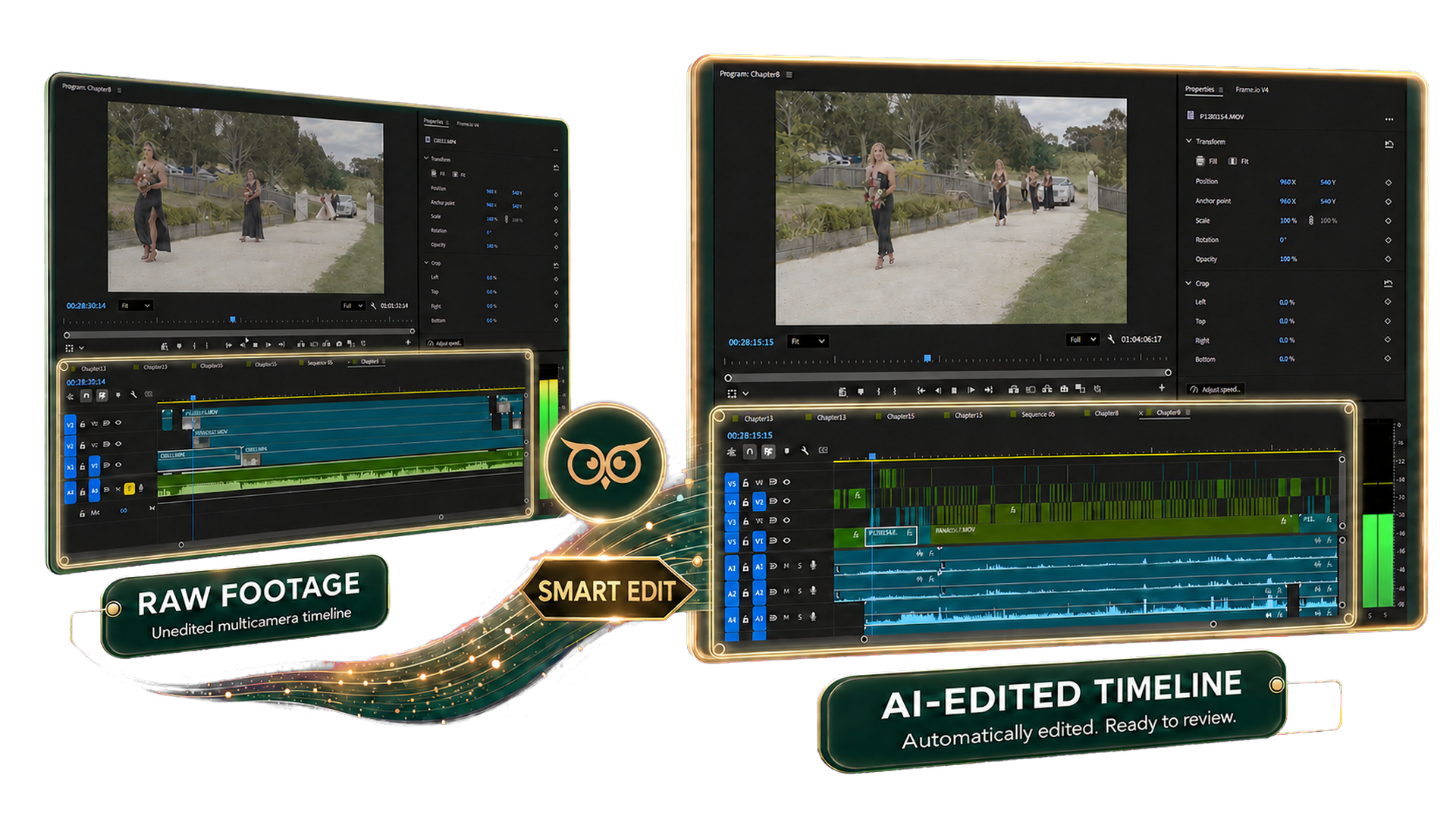
Choose a ready chapter, confirm the clip types and section boundaries, then run Smart Edit. VideoBot selects and switches cameras to create most of the first pass. Review every camera choice and make the creative adjustments that suit the story.
04Using Smart Clean+
Smart Clean identifies unstable or unusable parts of a shot and removes them from consideration. Review the result before delivery, particularly for intentional handheld movement or unusual camera work.
05Using Smart Scene+
Open a spoken-word transcript, review vows, speeches or other dialogue, and select the passage you want. VideoBot creates a synchronised multicam sequence for the matching time range and available audio sources.
06Exporting to your NLE+
Export the selected chapter or sequence as FCPXML. In Premiere Pro or DaVinci Resolve, import the file into the project that contains or can relink to your source media. Check the timeline, relink any missing paths and continue with story, music, sound, colour and final delivery.
Still stuck?
Tell us your platform, project structure and the step that is not behaving as expected.